

Summary
Description
 NOTE: This article applies to Sage 50 Accounts v26 or below. If you're using Sage 50 Accounts v27 or above, please refer to our alternative guide.
When using Sage Drive, when you open the software at either the main site or a secondary site, the following messages may appear:
- 'Waiting to open Queue.dta'
- 'Queue.dta is in use. Please wait until this file is available'
- 'The Sage ID user <> on computer <> is currently processing at <> site.
 IMPORTANT: In order to resolve this you will need access to your Sage Drive main site in addition to the sites affected by the issue.
If you receive a 'Waiting to open' message for other file names, please refer to our alternative guide.
Resolution
Check if you use Sage Drive
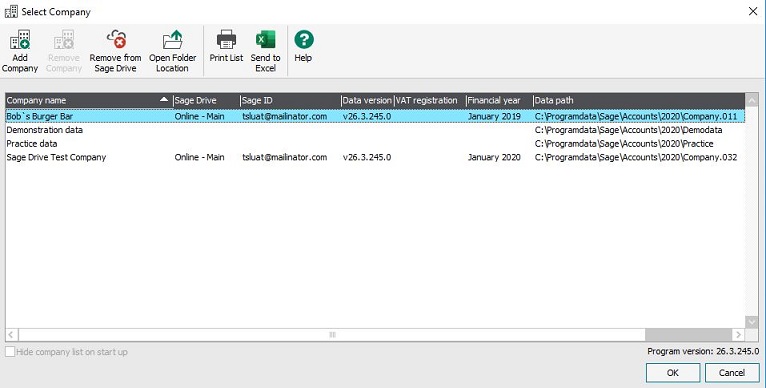
To resolve this issue, first check if you're using Sage Drive. If you're unsure, when you open your software, if the company list shows online or offline in the Sage Drive column then you do use Sage Drive for that company.
If you don't use Sage Drive for this company
- Delete the queue.dta file - Read more >
If you're not using Sage Drive and you receive the message 'Queue.dta is in use. Please wait until this file is available'. Read more >
If you use Sage Drive for this company
NOTE: For Sage Drive to work smoothly you must have a stable Internet connection that meets the recommended download and upload speeds required. You can check your Internet connection speed at various sites online, such as www.speedtest.net
- Recommended download speed: 4Mbps or higher
- Recommended upload speed: 2Mbps or higher
In order to resolve this you will need access to your Sage Drive main site in addition to the sites affected by the issue. Once you have arranged access to all relevant sites, follow the steps below.
Update to the latest build
Check all of your computers with a Sage installation are running the latest build of your software version.
If you can open the software
- Click Help then click Check for updates and install as required.
If you can't open the software
The latest updates are available to download and install from www.sage.co.uk/au
Restart the computer where your data is held
If possible, restart the computer where your data is held at every Sage Drive site.
If this isn't possible, you must instead reset the Sage services on the computer where your data is held at every Sage Drive site.
Delete Queue.dta, remove Sage Drive and, if required, re-upload data
- Delete the queue.dta file - Read more >
If the issue persists after deleting queue.dta, you should:
Find out more in our dedicated Help Centre
To help you with Remote Data Access, we've pulled together everything you need.
Visit the Help Centre.
 Africa
 Asia
Asia Australia
 Canada
 France
 Kenya
Kenya Nigeria
 Portugal
 South Africa
 Spain
Spain United Arab Emirates
 United Kingdom
 United States
 Germany