The Purchases list
Summary
Find transactions, see what's outstanding, and edit or delete transactions in Sage Accounting.
Resolution
 NOTE: This topic describes a premium feature. If you don't have it, see more information on Growing your Business with Sage to learn more about upgrading your subscription to turn on premium features.
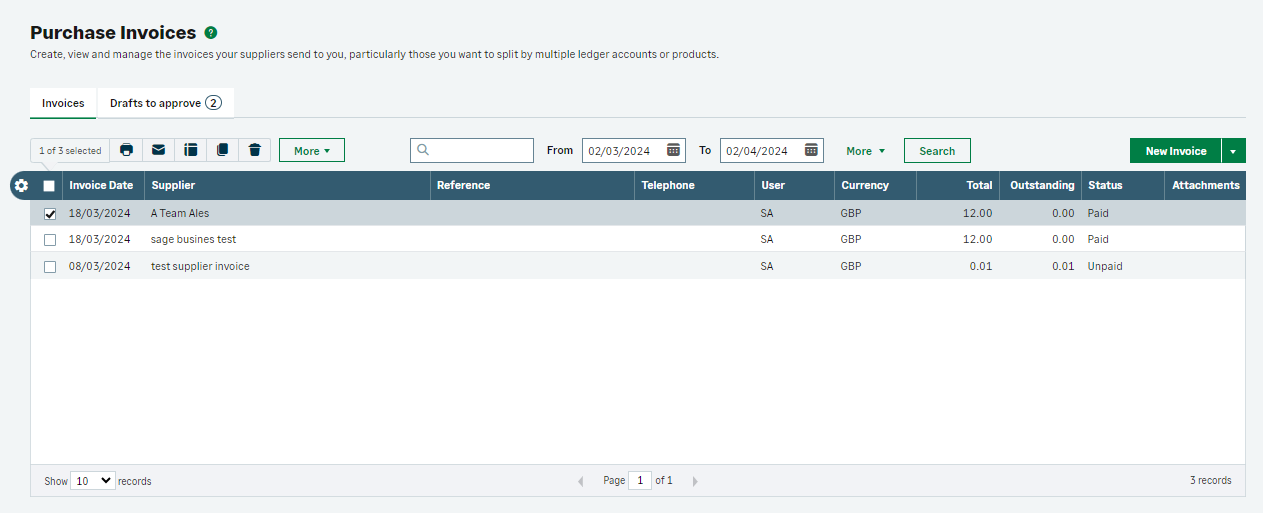
How to use the purchase list
- Create a purchase invoice or purchase credit note
- Select a row to view, edit, or pay an invoice or credit note
- Select the check box to delete an invoice or credit note
- Use the search box to find transactions by company name, the name of the contact, value or reference
- Use the From and To dates to filter by date
- Select More to filter the list by payment status
Configure columns
You can change the information that appears on the sales list. To do this:
- Click the Configure Columns button
 .
- Select the check boxes for the information you want to show on the list.
You can have a maximum of ten columns. You may need to clear the check boxes for information you don’t want to appear before selecting the boxes for the information you do want to show. To return to the default columns at any time, click Reset
- Click Save.
The action toolbar
The action toolbar appears when you select the check box next to one or more invoices.

From the toolbar you can do one of the following:
| The sales list opens in a new window or tab and you can print it from your browser menu. | |
| Use this option to email a copy of the invoice as an attachment. For example, you might want to email a customer a copy of all of their outstanding invoices. If you want to do this, make sure you only select the invoices for that particular customer. | |
| CSV | Depending on your Internet browser, the sales list either downloads automatically or you may receive a prompt asking you to save the file. |
| Use this option to download a PDF copy of the invoice. Depending on your Internet browser, it downloads automatically or you may receive a prompt asking you to save the file. | |
| Copy | Use this option to quickly copy an existing invoice. This is particularly useful if you repeatedly create invoices for the same items and customer. This option only appears when you select a single invoice. |
| Delete | You can utilize this option to delete or void a transaction. To comply with Revenue rules and maintain sequential numbers, we void non-draft invoices rather than deleting them. |
Related Solutions
Solution Properties
- Solution ID
- 222001000101093
- Last Modified Date
- Thu Apr 30 08:53:58 UTC 2026
- Views
- 0