What's new in Sage Accounting?
Summary
Description
Not updated since 2023.
Resolution
What's new 2023
October
Export all records
Easily share data with others using the Export all option
Quickly export customer, supplier, product, or service records. Each export contains all fields for all records except the Analysis Types.
Simply select Export all from the New menu on relevant list.
The export file may take a few minutes to create. Check for a notification on the toolbar to tell you when the file is ready.
Reorder lines on sales invoices
Ever needed to add a line or change the order of the lines on sales invoices?
Check out the new reorder lines option on sales invoices. This makes it quick and easy to display your lines correctly.
Just choose the new Reorder lines link, save your invoice, then drag and drop the lines to the order you need.
For we save new invoices as a draft first. Once you've finished, make sure you clear the Save as draft check box ready to send the invoice to your customer.
Create refunds from bank feeds
To speed up the processing of new transactions from bank feeds you can now choose to create a refund.
When you choose the Create a refund link , you can
- Select income ledger accounts, and add a customer (if required), for money out transactions
- Select expense ledger accounts, and add a supplier (if required), for money in transactions
July
Search, sort, and filter recurring invoices
Quickly find your recurring invoices with search, sort, and filter options. These are now on the Recurring invoice list.
You can now
- Filter by status such as Finished or Paused
- Search by contact, reference or amount
- Sort the recurring invoice list by contact, reference, last or next invoice date, end date, frequency, or amount. Click a column heading to sort the column in ascending or descending order
- Show or hide columns using Configure Columns

- Use the action toolbar at the top of the list, to pause and resume, delete, or copy recurring invoices. Use the checkboxes to select the required invoices
June
Calendar monthly ageing
You can now choose to age your transactions by calendar month rather than just days.
Transactions show on Aged Debtors and Aged Creditors reports based on the month of the invoice date.
For example, if today's date is 10 July, invoices dated in July show in the Current column. Invoices dated in June would show in the 1 Month column.
Import stock adjustments
In improvements to our import functionality, we have extended the import to include stock adjustment transactions.
This is useful if you have a large number of stock adjustments to do at once.
Bulk importing made easier
We've made it even easier to import new records by extending the fields available.
We've extended the import functionality to include
Analysis types
Import analysis types for customers, suppliers, and products and services.
Use analysis types to group records together for enhanced reporting and analysis. Whether you need to analyse sales performance by region, track project profitability by department, or monitor expenses by category.
Before importing, make sure you have already created all your analysis types. Also make them Active for the type of record you are importing. An analysis type must be Active for customers before you can import customer records.
- Read more about how to create analysis types
- Read more about importing customers and suppliers
- Read more about importing products and services
Categories
Include categories when importing product and service records.
Categories are great way to group similar products and services together. This enables more efficient stock management, analysis and reporting.
Before importing, make sure you have already created your categories and sub-categories. The text in the CSV file should exactly matche the name of the category or sub-category.
Active and Inactive records
Choose to mark records as Active or Inactive. This helps you keep your lists manageable whilst also keeping track of records that you no longer need on daily basis.
May
Hide contact names on invoices
We've now made it easier to hide the contact name on documents such as invoices and credit notes.
Currently, when the Main contact name is the same as business name, it prints on your invoices twice.
To prevent this, simply choose to hide the contact name from all documents.
From Business Settings, then Document Preferences, clear the Show contact name check box.
April
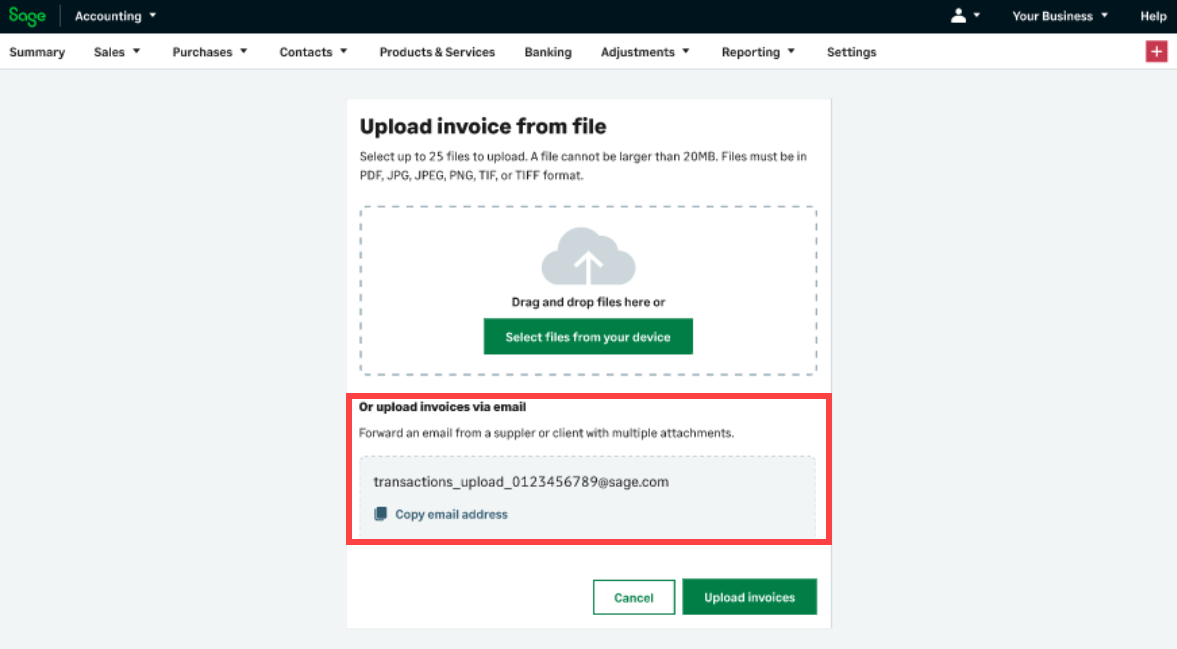
Create transactions from an email with Purchase Automation
Instead of uploading documents or images, you can create transactions from email attachments. Forward an email with a supplier invoice or receipt to a provided email address. From there, Accounting will automatically create a corresponding draft transaction for your review.
This saves you the time of having to sign in to Accounting and upload documents or images.
Learn more about Purchase Automation
January
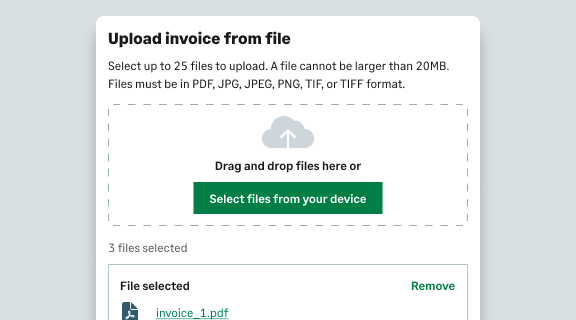
Automate data entry with Purchase Automation
Purchase Automation to automatically creates purchase transactions from documents and images you upload. You can create up to 25 transactions at once, saving you time and reducing the risk of errors.
What's new 2022 >
November 2022
Calculate the net amount from the gross
We've now made it easier to enter transactions when you only know the gross amount.
Rather than having to workout the amount of VAT, just enter the gross amount in the Total field and press Enter. We calculate the VAT and Net for you.
You can do this for the following transaction types
- Other payments
- Other receipts
- Sales quick entries
- Purchase quick entries

Read more about calculating the net amount from the gross
October 2022
Easily edit reconciled receipts and payments
Ever completed a bank reconciliation and realised you made a mistake?
You can now edit a reconciled payment or receipt. This includes changing the bank account, date, and amount.
Just edit the receipt or payment from the bank activity.
Depending on what you change, we will
- Unreconcile and update the transaction ready for you to check and reconcile again
- Update the starting balance of your next reconciliation to reflect the change
- Tell you if you've edited a receipt or payment when you check a completed reconciliation
Read more about editing reconciled bank transactions
August 2022
Effortlessly delete reconciled bank transactions
Continuing with our improvements to correcting transactions, you can now delete reconciled bank transactions.
Simply delete the bank transaction in the usual way. We will
- Display a message to tell you that the transaction is reconciled
- Show you that the transaction is deleted when you view the completed bank reconciliation
- Update the starting balance of your next bank reconciliation to reflect the deleted transaction
Read more about deleting bank transaction
July 2022
Tidy up and gain control of your contacts
Do you have customers and suppliers you no longer do business with?
Over time, these unused contacts can clutter up your contact list. It can also be difficult to prevent people in your business from creating new transactions for them.
You can now make unused contacts Inactive. Once inactive, we remove them from all selection lists. This ensures that no one can create new transactions for any inactive contacts.
You can also view contacts by status on the Contacts, Customers, and Suppliers pages. Select Filter at the top of the list, and then Active, Inactive, or All to change the view.
Find out more about inactive contacts.
Easily correct cleared transactions
We've made correcting cleared transactions quicker and easier.
Now no need to remove the remove the cleared status first. Simply edit or delete a cleared transaction in the usual way.
Find out more about cleared bank transactions.
New due date options for recurring invoices
You’ve told us that you want more flexibility when setting invoice due dates. You can now set the due date to days after invoice date, end of next monthly (net monthly), or Immediately on recurring invoices. These options are also available in Record and transaction settings for sales and purchase invoices.
Find out more about Recurring invoices.

Save time when creating transactions
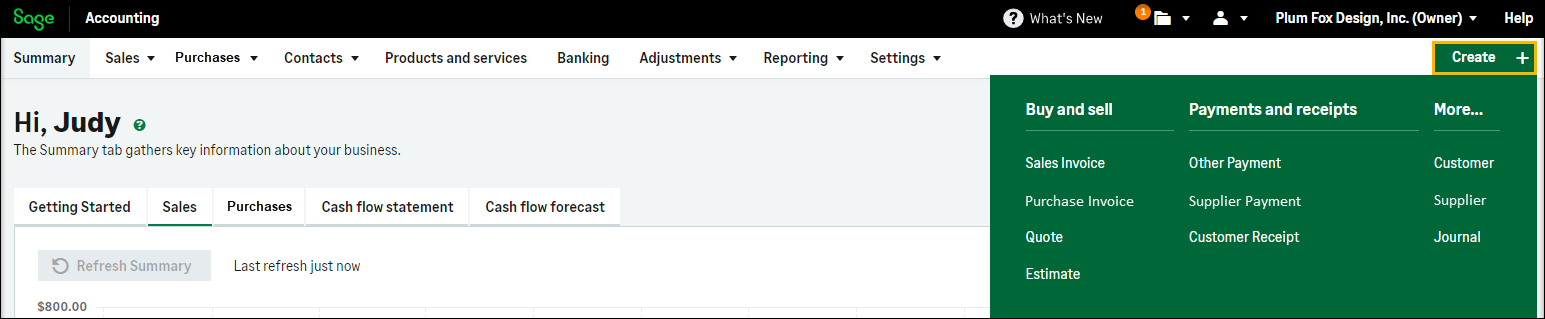
We’ve improved the look and functionality of the Quick Create button. Use this button as a short cut to quickly access the page you need to create the relevant transaction. This saves you time when you're in a hurry and is great for colleagues who are new to Accounting.
June 2022
New invoice due date options
You’ve told us that you want more options when setting invoice due dates. For sales invoices, set the due date to [n] days after invoice date, End of next monthly (net monthly), or Immediately. You can also select one of these options when setting the payment terms on purchase invoices.
Find out more about these options in Record and transaction settings.
March 2022
Showing transactions with attachments
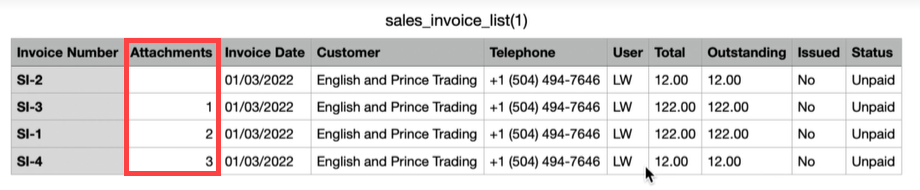
Easily check which sales and purchase transactions have attachments.
The new Attachments column shows the number of attachments per transaction. This saves you time, as you no longer need to open a transaction to see if it has attachments.
You can find the new column on the Sales Invoices, Sales Credit Notes, Purchase Invoices, and Purchase Credit Note pages. Select the header to sort the column by number of attachments. This helps you to find transactions.

You can use Configure Columns  (located to the left of the header row) to change the order of the columns. If you don't want to see a column, you can simply remove them from the view.
Showing or hiding the Attachments column also affects your exported CSV files. If the column shows and you export to a CSV file, it will include the number of attachments per transaction. If you don't want this, remove the column from the view before exporting.
February 2022
Export contact addresses to a spreadsheet
You can now export addresses for customers and suppliers to a spreadsheet.
Just select the customers or suppliers from the Contacts list , choose More, then Address List.
Find out more about exporting contact addresses.
Add attachments to bank transfers
You can now attach supporting documents to bank transfers. With this, you can add:
- Multiple files.
- File types: PDF, GIF, JPG, JPEG, PNG
- Files up to 2.5 MB
January 2022
Automate journal entry creation
We've made it easier for you to add journals to Accounting with the new journal entries import feature. This saves you the hassle of manually creating journals. For example, you can import ledger adjustments you've got in a spreadsheet as journals. You may also need to regularly import totals from another system (such as point of sale or payroll) as journals.
When preparing your file, you decide how to create journals for your business. Create individual journals per entry or one journal for several entries, all in the same file.
Find out more about importing journal entries.
Play a video about importing journals.
Improved bank statement import
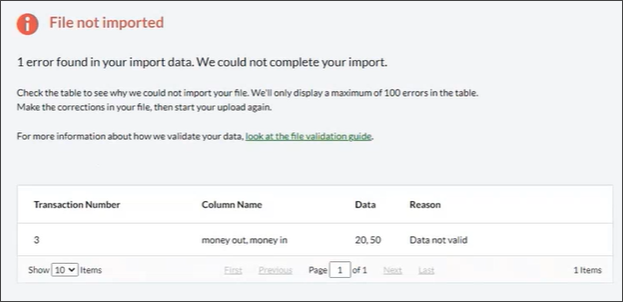
If your bank statement fails to import, Accounting will now open an error list page. The list includes the transaction number, column, data, and reason for each error. Use this information to go right to an issue, fix it, and get your transactions imported.
Find out more about importing a bank statement.
AutoEntry invoice number mapping
With the AutoEntry integration, Accounting automatically creates transactions from scans or images. Details from your AutoEntry documents map to like transaction details in Accounting.
By default, the Invoice # field in AutoEntry maps to the Reference field on purchase invoices. This means that your invoice numbers from AutoEntry show in the Reference field when you create purchase invoices.
You've told us that this is often unideal, so you can now change this mapping. Instead, map the Invoice # field to the Supplier Reference field on purchase invoices.
Find out more about Changing the invoice number mapping in AutoEntry (new tab).
What's new 2021>
October 2021
Improved Banking automation
We’ve made it easier for you to import bank transactions in the way that suits your business. Plus, save time by applying bank rules to automatically created transactions.
More flexibility importing transactions
Easily import your bank transactions from a statement. Once uploaded you can:
- Apply bank rules to transactions to automate the process, saving you time
- Bulk delete any duplicate transactions before importing them
Find out more about importing a bank statement.
Automate bank rules
- Apply bank rules to bank feeds and imported transactions
- Copy and import rules between accounts - no need to recreate them manually
Find out more about what are bank rules.
Multi-currency banking
 NOTE: Multi-currency banking is available only to Sage Accounting Plus subscribers.
We’ve added to multi-currency banking to make it easier for you to do business in other countries. You can now:
- Add bank accounts in currencies other than your base currency
- Select bank accounts in other currencies when creating transactions
- Toggle between currencies when reviewing bank account activity
- Revaluate bank accounts, showing gains and losses
- Transfer funds between bank accounts with different currencies
- Create journal entries for bank accounts in different currencies
Find out more about Multi-currency banking.
Mobile app improvements
September 2021
New 12.5% VAT rate
From 1st October the VAT rate hospitality, holiday accommodation and attractions changes to 12.5%.
To support this, we've added a new VAT rate called Lower Rate 2.
Any transactions related to hospitality, holiday accommodation and attractions which used the Lower Rate of 5%, will now need to use the new 12.5% rate from 1st October.
Find out more about when to use the new rate
August 2021
Logo customisation
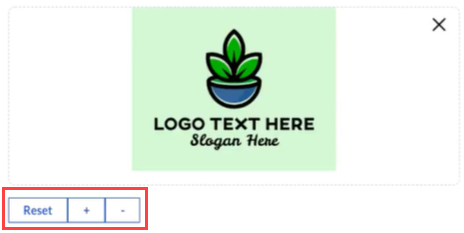
To ensure your invoice accurately reflect your company's brand, we've simplified the upload and adjustment of logo's when customising your invoice.
- We've removed the size limit of 1 MB for logo images and
- Once uploaded, you can easily reposition the image in the preview area or zoom in or out to get it looking just right
- If you need to start over, just reset the image
From Settings, then Business Settings, select Logo and Templates under Document Preferences to try it out.
July 2021
EU VAT rules and destination VAT
On 1 July, the EU introduced a new optional VAT scheme for sales to EU consumers (a customer in the EU who is not VAT registered).
The One Stop Shop will allow you to report and pay EU VAT through a single return instead of having to register and pay VAT in each country you sell to.
Sales reported through the One Stop Shop are subject to destination VAT. Instead of charging VAT at the Irish rate (or home rate), you will charge VAT at the rate where your customer lives.
If you register for the One Stop Shop schemes, new destination VAT settings will help you to apply destination VAT on sales documents to EU consumers. We’ve also added new reports to help you complete your One Stop Shop VAT Return.
Find out more in our EU VAT e-commerce help guide.
June 2021
Payroll and Accounting integration
If you have previously migrated from another software provider, or another Sage product, such as Sage 50 Accounts, you can now integrate Accounting and Payroll.
If you subscribe to both Accounting and Payroll, details of your wages can be automatically recorded in Accounting, each time you complete a pay run in Payroll.
For more information about how to set up the integration, see Change from manual to automatic payroll journals
May 2021
Easier invoice customisation
We've made it easier to access the settings you need to customise an invoice when you're creating a sales invoice.
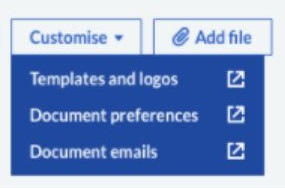
Whether you want to change your logo and template, change labels and headings on the invoice itself or change the text in emails you send to customers, we've now added handy links allowing you to customise your invoice.
Select an option from the Customise menu at the bottom of the invoice to jump to the related settings.
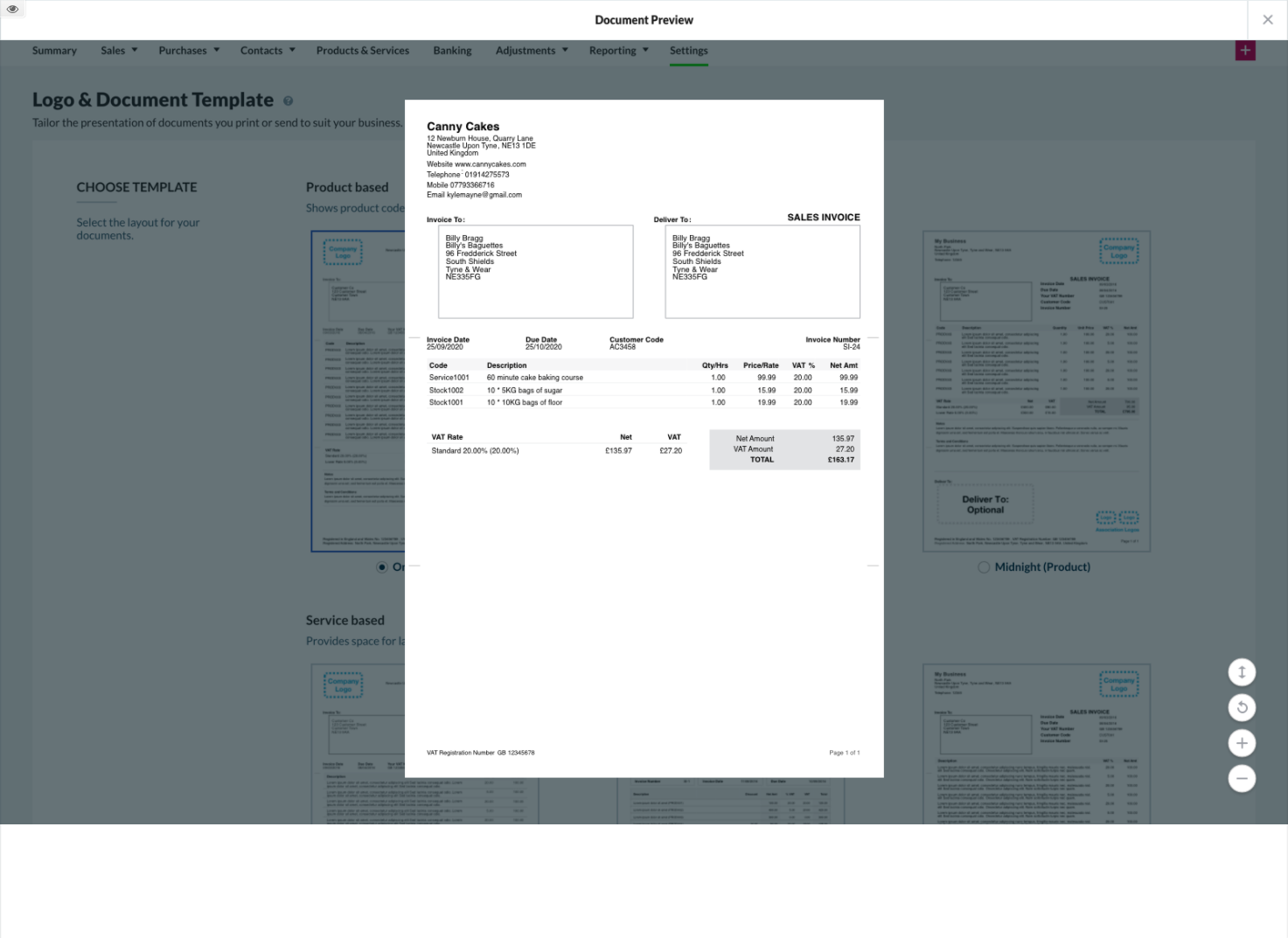
It's also easier to see the effect your changes have made with the new Preview option when making changes in settings that affect your invoices.
Reconciling bank accounts
To make bank reconciliation easier, we've moved the Reconcile button. To access it, go to Banking and then select a bank account. It is now located to the left of the New Entry button.

Previously, you opened the Connect to Bank (or New Transactions, if you have a bank feed) menu and then selected Reconcile.

EU Goods and Services update
To make adding EU Goods and Services easier, we’ve changed the way you add them to sales invoices. The EU Goods and Services field now displays on the invoice page when needed, so you can add them to each item line.
March 2021
Changes to how you access your subscription invoices
You will receive an invoice every month with the charges for your Sage subscription.
We'll either send your invoice by email to the business owner registered with your account or add your invoice to the Business Account area of Settings.
To learn more about accessing your subscription invoices see Manage your subscription and services.
Search with less information
Find the contact you're looking for with less information. To make life a little bit easier, enter a contact's address (or partial address), their main or mobile phone number, or just their primary name in the Search field on contact lists to find them quickly.
We've also updated the Search field on theAudit Trail report to search by transaction number so you can quickly track down the history of an entry. This comes in handy when you quickly need to find transactions that show on your VAT Returns.
Easily improve your documents
To make document customisation easier, we've moved document settings to their own section on the Settings page. With this change, we've also renamed some groups to better explain the settings within.
These are the settings groups in the new section with their old and new names:
| Old name | New name |
|---|---|
| Logo & Document Template | Templates and Logos |
| Email Messages | Document Emails |
| Invoice Form Settings | Document Preferences |
Previously, these settings were located in the Invoice & Business Preferences section, which is renamed to Business Preferences.
Profit and Loss report
When running the Profit and Loss report, you can now choose between the Standard or Comparative versions. The Standard version shows income, expenses, and profit for the current financial year. The Comparative version compares the same information in the current financial year to the previous financial year.
To access these reports, select Reporting, Profit and Loss - Standard or Profit and Loss - Comparative from the main menu. Once a Profit and Loss report is open, select the button if you want to switch to the other version.
Previously, the Profit and Loss - Comparative report displayed when you selected the beta version link from the Standard report.
Inactive bank accounts
You can now mark unused or closed bank accounts as inactive. This allows you to view accounts by status on the Banking page. Select the Active, Inactive, or All tab at the top right-hand corner of the page to change the view. Inactive accounts are also hidden from selection lists when creating transactions. This prevents the posting of new transactions to the inactive account.
For audit purposes, inactive accounts still show in reports and completed transactions.
Find out about inactive accounts
February 2021
CIS and reverse charge VAT
From March 1st, all contractors and subcontractors registered under the CIS scheme need to charge VAT using the reverse charge mechanism.
To take the stress away from remembering to do this on your CIS transactions, we've automatically updated all VAT registered contacts to use reverse charge VAT, so you can be sure that new invoices created after 1st March will have reverse charge VAT applied.
Find out how to use VAT reverse charge in Sage Accounting
January 2021
Show more rows in grids and lists
Get a clearer view of your transactions and display up to 100 rows by default on list pages (such as Sales Invoices) throughout Sage Accounting.
From Settings, then Business Settings, choose Navigation and Data Grids, and then select 100 in the Tables of Data section.
Override this as needed by selecting a number in the footer of a list page.
Back button in Banking
Easily navigate back to the Banking page with the new Back to Banking button.
Shown in the top toolbar, this allows to get bank to your bank accounts.

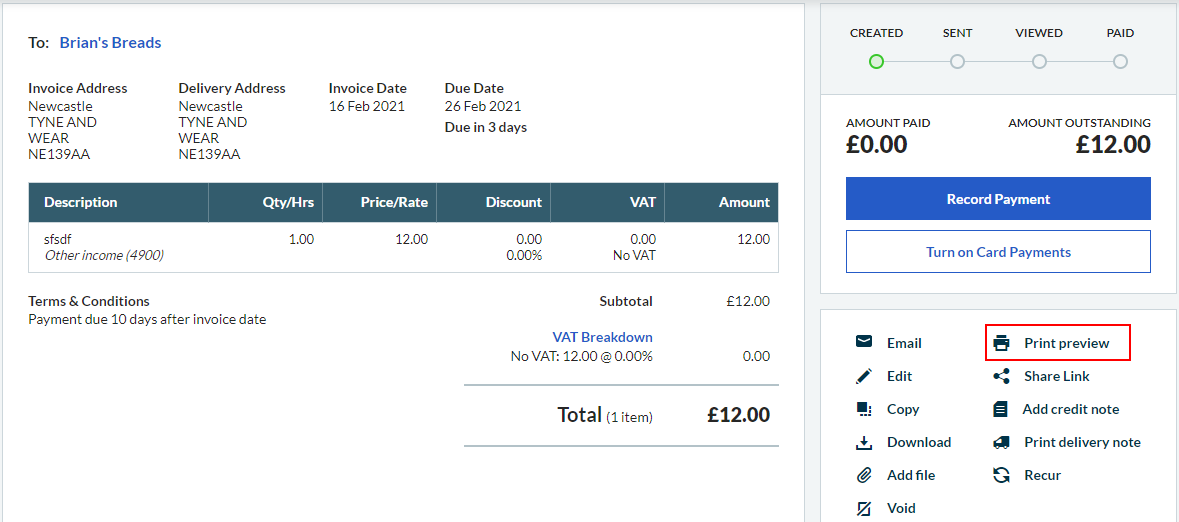
Preview your invoices
Get a quick preview sales invoices before you send them
Select Print Preview and view the invoice in another tab in your browser.
What's new 2020 >
December 2020
Find out what actions you need to take before 1st January and the other changes made to Sage Accounting to support Brexit.
Legislation changes due to Brexit will affect the tax and transaction types you use in Sage Accounting, the following areas are affected:
- Northern Ireland contacts
- Customers and suppliers not registered for VAT
- Recurring sales invoices
- Other payments and receipts
- Quick entries
- Bank rules
To find out more, visit our Brexit support pages
November 2020
Easily improve your customer statements
We've moved statement settings to their own section in Settings, then Business Settings, Statement Settings.
Use the Statement Settings page to decide how transactions are shown and add personalised messages such as your bank details.
Previously, statement settings were located in Record and Transaction settings.
September 2020
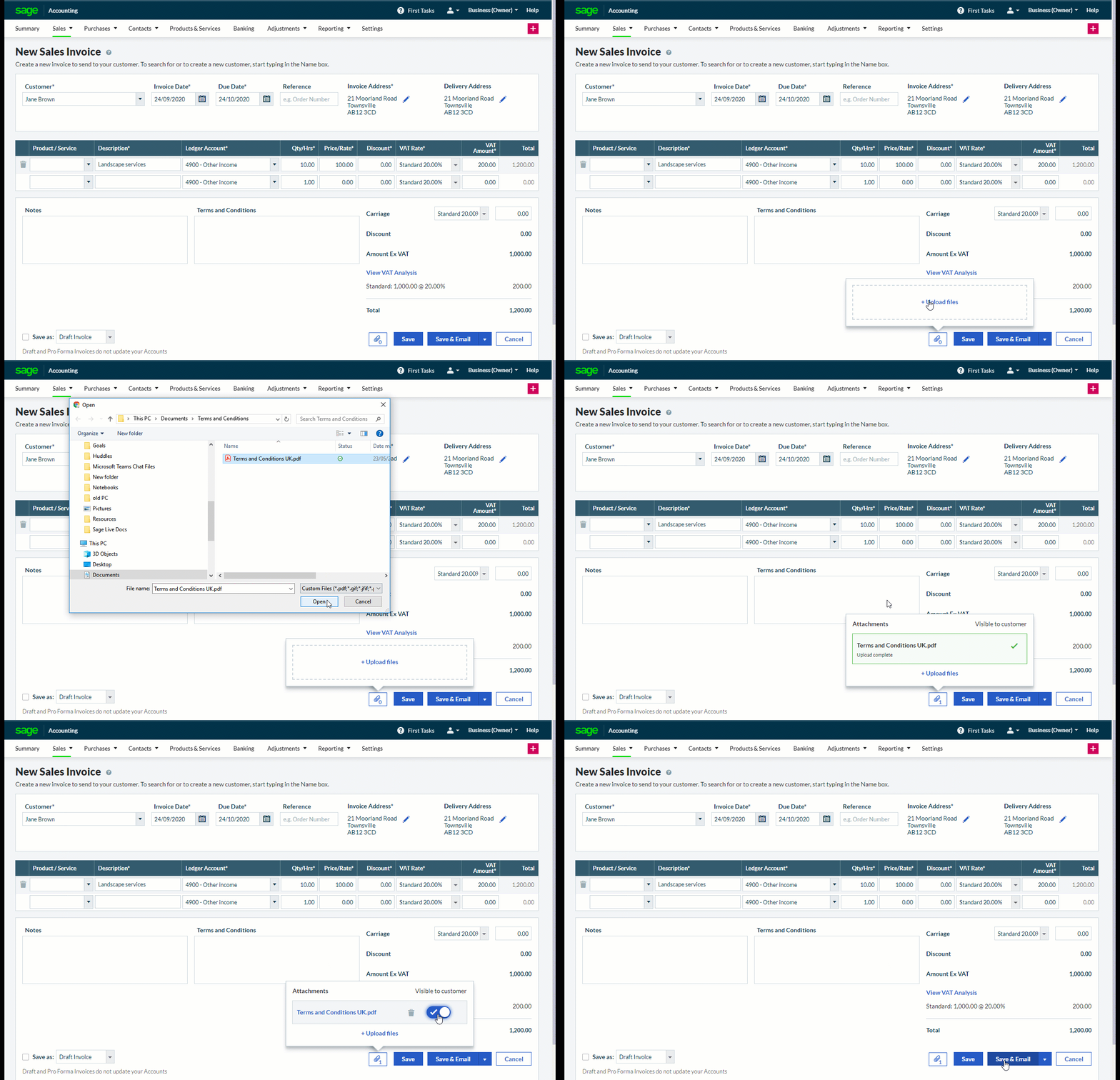
Add attachments to your sales transactions
Now it's easy to attach supporting information such as sales brochures, product images, price lists etc. to your sales invoices, credit notes, quotes and estimates.
- Add multiple attachments
- Make attachments visible to your customers or for internal use only
- Supports the following file types: PDF, GIF, JPG, JPEG, PNG
- File size up to 2.5MB
- If a recurring invoice isn't sent, the document timeline no longer shows the status as Sent
- Active bank feeds will now download transactions properly after you successfully sign in for re-authentication
-
You can now record sales invoice refunds on VAT reconciled payments
July 2020
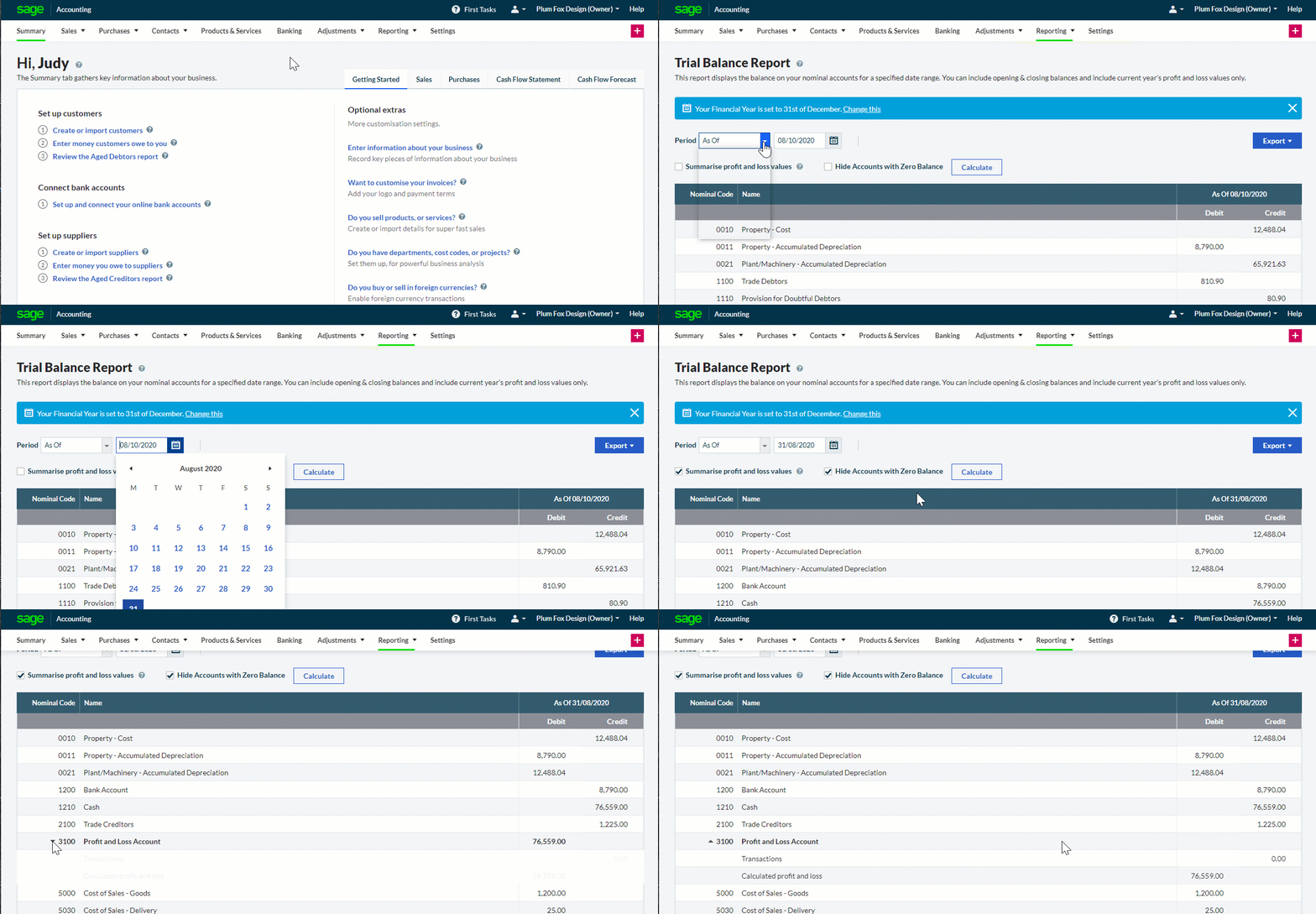
We’ve made these great improvements to the Trial Balance report:
- As of option. You can now run the report “as of” a specific date to get a snapshot of what your nominal ledger account balances were on that date. The report will show data from the start of each account up to the selected date
- Zero balance accounts option. The new Hide accounts with zero balances option allows you to hide (or show) zero balance ledger accounts on the report. These accounts have been posted to but have a net balance of zero in the reporting period. By default, the option is selected, which hides them on the report NOTE: Unused ledger accounts are never included on the Trial Balance report.
- Retained Earnings breakdown. If you select Summarise profit and loss values, a Profit and Loss line is included on the report. You can now expand the row to see a breakdown of how the summarised amount was calculated. The report splits out the system calculated Profit and Loss values and manual postings to the Profit and Loss account
June 2020
Adding logos to invoices
We’ve made it even easier to add logos to your sales documents. Now when you upload a logo, it’s automatically checked to make sure the size of the file and the quality of the image are suitable.
If the image isn’t quite right, we'll tell you what needs changing.
May 2020
Remind customers how they can pay you
Need to let your customers know how they can pay you?
For online invoices where you're not using online payments, you'll now see the following message: Please contact us if you are unsure how to make a payment.

If you are using online payments, we'll add a Make Payment button, to encourage your customers to pay straight away.
Zero value invoices removed from lists
Are invoices with a zero value cluttering up your invoice list?
We've improved how we handle these so they no longer show as Overdue and don't appear on the Overdue and Outstanding tabs of your invoice list.
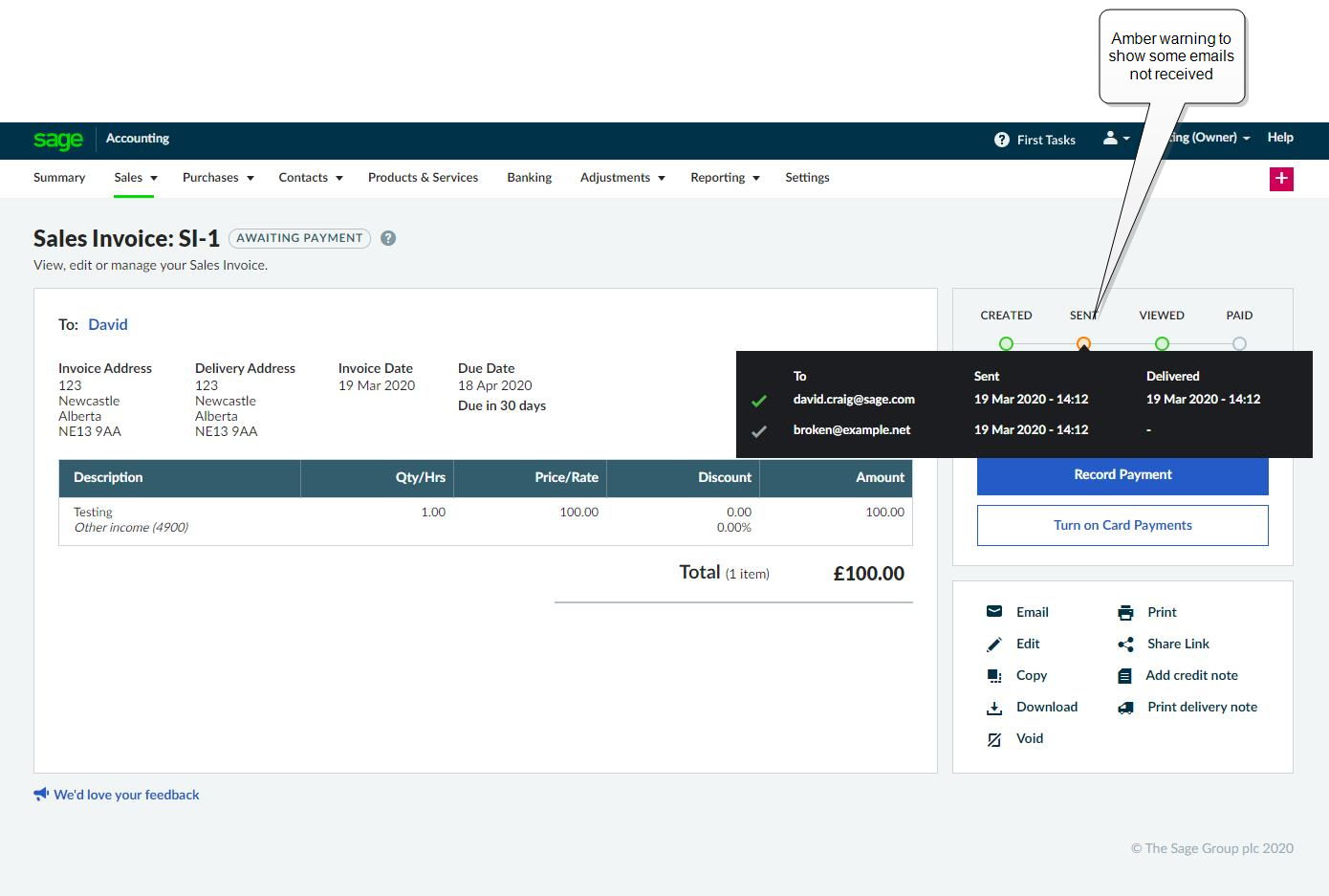
See when invoices haven't been sent to all recipients
Not sure whether an invoice has been sent to everyone?
Now you can see when an invoice hasn't been sent and when to re-send or check out your email addressees.
The Activity grid now shows an Amber warning when not all email messages were delivered.
Page headers added to longer reports
We know it's hard to read reports that run over several pages, so we’ve improved some reports to show headers on every page:
- Profit and Loss Beta
- Aged Debtors
- Aged Creditors
- Aged Debtors Breakdown
- Aged Creditors Breakdown
- Trial Balance
- Customer statements
Bug fixes and improvements
- To make sure the trial balance report matches what most people expect, we’ve replaced Brought forward values with Opening & Closing Balance
- You'll now need to set an obligation period before saving an MTD VAT Return
- As many people have more than one cash account, you can now record bank transfers between two cash accounts
- When exporting PDF reports, the colour of the text is now set to black
March 2020
Recurring sales invoices
Do you have customers who regularly order the same thing or are sending out the same repeat invoices every month? Do you have services or subscriptions where you send out the same bill each period?
Save time and reduce errors by using Recurring Invoices. These are great for invoicing services that you deliver on a regular schedule and for products that you sell repeatedly.
Find them from the Sales Invoices tab.
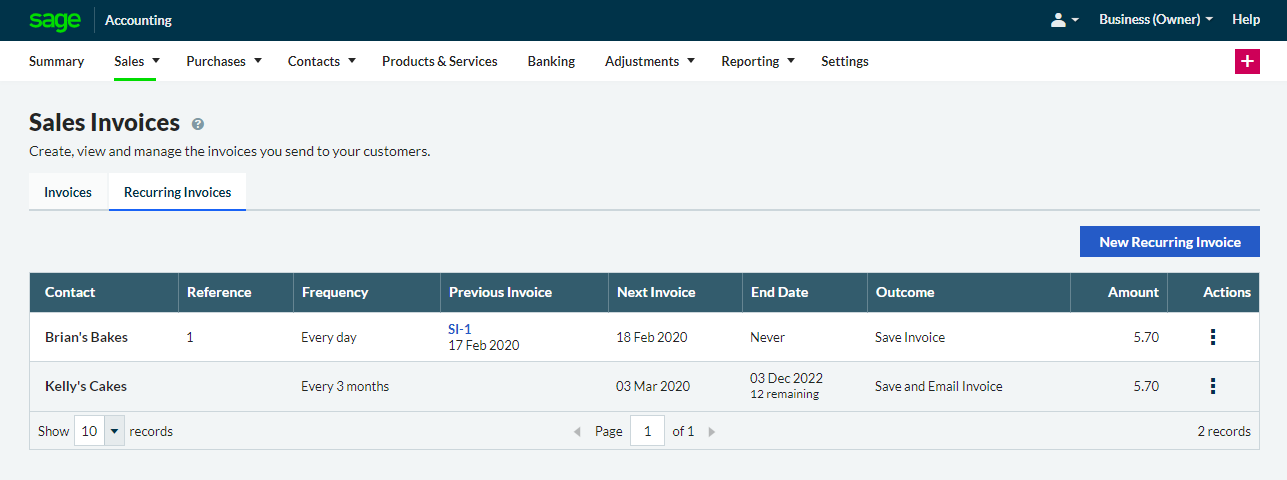
- Set up a recurring invoice as a template
- Decide when you want them to recur and when you want them stop
This could be every day, every other day, weekly, monthly, quarterly etc, or you can keep creating them perpetually - We'll create the invoices automatically on the day they are scheduled, so you don't have to remember
- If you choose to send them straight away, we'll email them to your customers at the same time
Bug fixes and improvements
- The Cashflow tab no longer overlaps with the Summary page making to easier to view
- The part recoverable tax amounts on a ledger account are now included in the Chart of Accounts reports, so you export the amounts and import to a new business if required
- The part recoverable amounts are now visible on the Chart of Accounts list, so you can make sure your ledger accounts are set up correctly
Solution Properties
- Solution ID
- 222001000101272
- Last Modified Date
- Thu Oct 08 09:43:17 UTC 2026
- Views
- 0