Edit a purchase invoice
Summary
How to change the details on a purchase invoice in Sage Accounting.
Description
The ability to edit an invoice depends on your VAT Scheme and whether the invoice has been included on a VAT Return.
Invoice Basis VAT Scheme? - The invoice may have been included on a VAT Return.
Cash Basis VAT Scheme? - The invoice won't be included on a VAT Return, only the payment would be.
Resolution
Edit a purchase invoice
- Go to Purchases, then Purchase Invoices.
- Find and select the invoice you wish to edit.
- Select Edit.
If a message appears saying "You can't edit this invoice....." follow the corresponding steps below. - Edit the information needed and select Save.
Edit a paid invoice >
Un-match the payment from the invoice
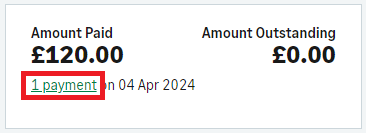
- From the invoice, select 1 payment located under the Amount Paid.
- Select the Amount next to the Supplier Payment.
- From the bottom of the Supplier Payment window, clear the checkbox for the relevant invoice and Save.
- Choose Yes to save the payment as a payment on account.
- Edit the invoice as needed and select Save.
Match a payment to the invoice
- Go to Purchases, then Purchase Invoices.
- Find the invoice and select the checkbox on the left.
- Above the list of invoices, select More, then Pay or Allocate.
- The invoice will already be selected. Select the payment you want to match.
- Make sure that Left to allocate is 0.
- Select Save.
Edit an unpaid invoice included on a VAT Return >
Edit a paid invoice included on a VAT Return >
You need to reverse the invoice and then create a new invoice with the correct details on.
Check for Draft VAT Returns
If the invoice is included in a draft VAT Return, you can delete the draft to allow you to edit the invoice.
- Go to Reporting, then VAT Returns.
- Look for any VAT Returns marked as Draft.
- If there are no drafts, go to the next section.
- Select Delete
 .
- Go back to the invoice and select Edit.
- If it still shows as being included on a VAT Return, follow the steps below.
If it doesn't, follow the steps above for Edit a paid invoice.
Un-match the payment from the invoice
- From the invoice, select 1 payment located under the Amount Paid.
- Select the Amount next to the Supplier Payment.
- From the bottom of the Supplier Payment window, clear the checkbox for the relevant invoice and Save.
- Choose Yes to save the payment as a payment on account.
- Edit the invoice as needed and select Save.
Reverse an invoice included on a VAT Return
- Go into the invoice you want to edit.
- Select Add credit note.
- The date should be the same date as the invoice.
- The rest of the credit note will automatically match the invoice.
- Select Save.
Creating the credit note reverses the invoice, and it will appear on the next VAT Return.
Solution Properties
- Solution ID
- 222001000101077
- Last Modified Date
- Thu Apr 30 08:51:51 UTC 2026
- Views
- 0