

Summary
How to import a bank statement using AutoEntry in Sage Accounting Start.
Description
If your bank statement is only available in PDF format, consider using AutoEntry to import it directly into Sage Accounting Start.
Resolution
Set up AutoEntry
If you don't already have AutoEntry, it’s easy to sign up and connect your Sage account.
Take a look here for help on how to set up AutoEntry.
Upload your bank statement
- From the home page, select Bank Statements and Upload.
- Select Browse and locate your PDF bank statement. The PDF file will appear in the window.
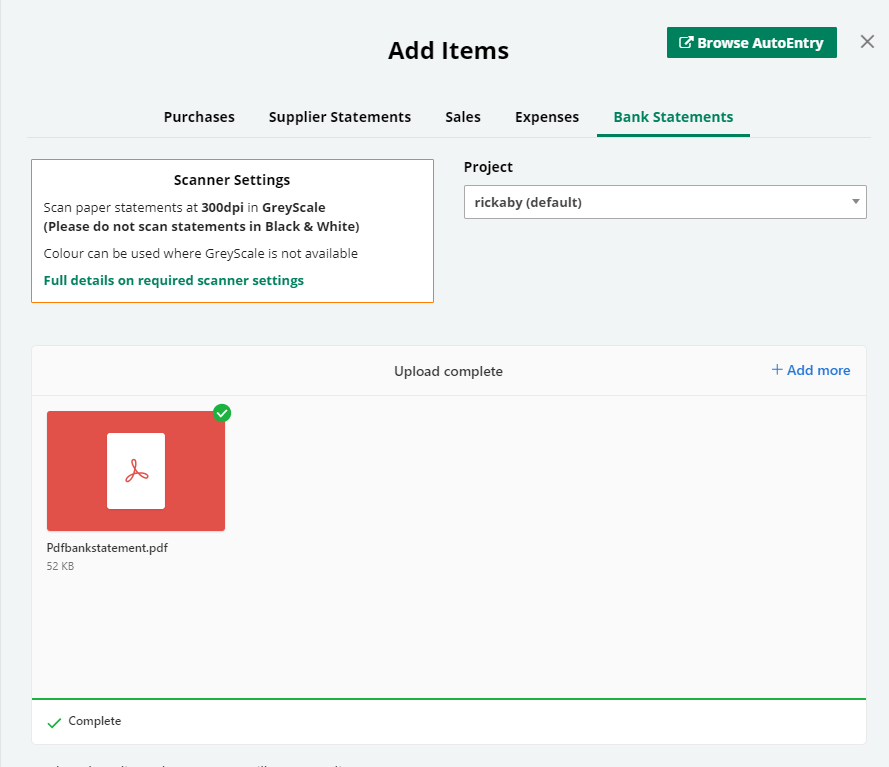
- Once uploaded, close this window.
- The bank statement will appear in the Activity list with a status of Queued for Processing.
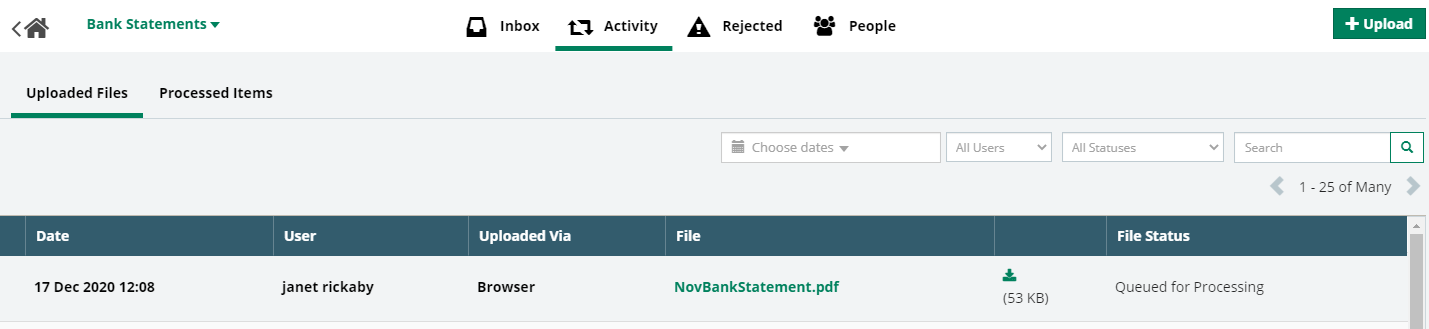
- After a few minutes this will change to Sent for Processing.
- Wait until the PDF is file is processed. This can take up to 4 hours.
- Once processed, the status will change to Approved and the file is moved to the Inbox.
Export the bank statement to Sage
Once the bank statement is in the inbox, you can export it directly to Sage Accounting.
- Select Inbox from the home page.
- To check the processed transactions, select View.
- To export the file, select Export to Sage.

- Select the Sage bank account you want to export to
- Select Export to Sage. In the calendar window select the dates of the transactions you want to export. We show the dates of previously exported transactions in blue to help you avoid duplicates. Once you’ve chosen the dates, select Export to Sage.
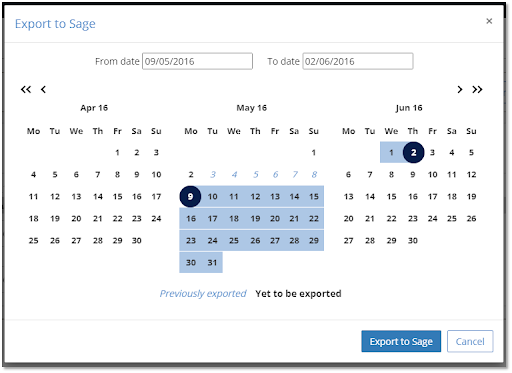
- Your transactions will be checked by Sage Accounting.
- Once complete a notification will show in Export history.
- You can review the transactions directly from your Sage Accounting banking page.
Review bank transactions
The number of imported transactions from AutoEntry are shown on the Banking page.
- Select the number to view all transactions on the Incoming Bank Transactions page.
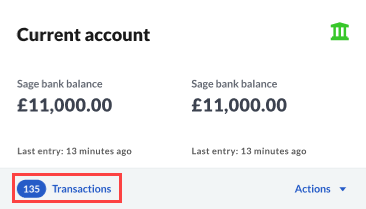
- The Imported from AutoEntry message shows each transaction that has been imported from AutoEntry.

Match, create or transfer transactions
For each transaction you need to choose whether to:
- Match transactions to bank rules
- Match incoming bank transactions to outstanding invoices, credit notes or receipts
- Create a new transaction without an invoice
- Transfer from or to a different account
- Delete transactions you don’t want to import
Help with AutoEntry
Get help and advice from the AutoEntry Help Centre (opens in new tab)
 Africa
 Asia
Asia Australia
 Canada
 France
 Kenya
Kenya Nigeria
 Portugal
 South Africa
 Spain
Spain United Arab Emirates
 United Kingdom
 United States
 Germany